A marketing newsletter needs three things: a list, a form that fills it, and a way to send. Skapi ships all three inside the backend you already pay for, and the sending part is the mail app you already have. Here is how it works, click by click, and what it costs next to Mailchimp.

One page, one address
Open your project and choose Newsletters in the sidebar. The page has a tab per list: Newsletter is the public list anyone can join with an email address, Service Email is the list of your signed-in users, and every named group you create gets a tab of its own.
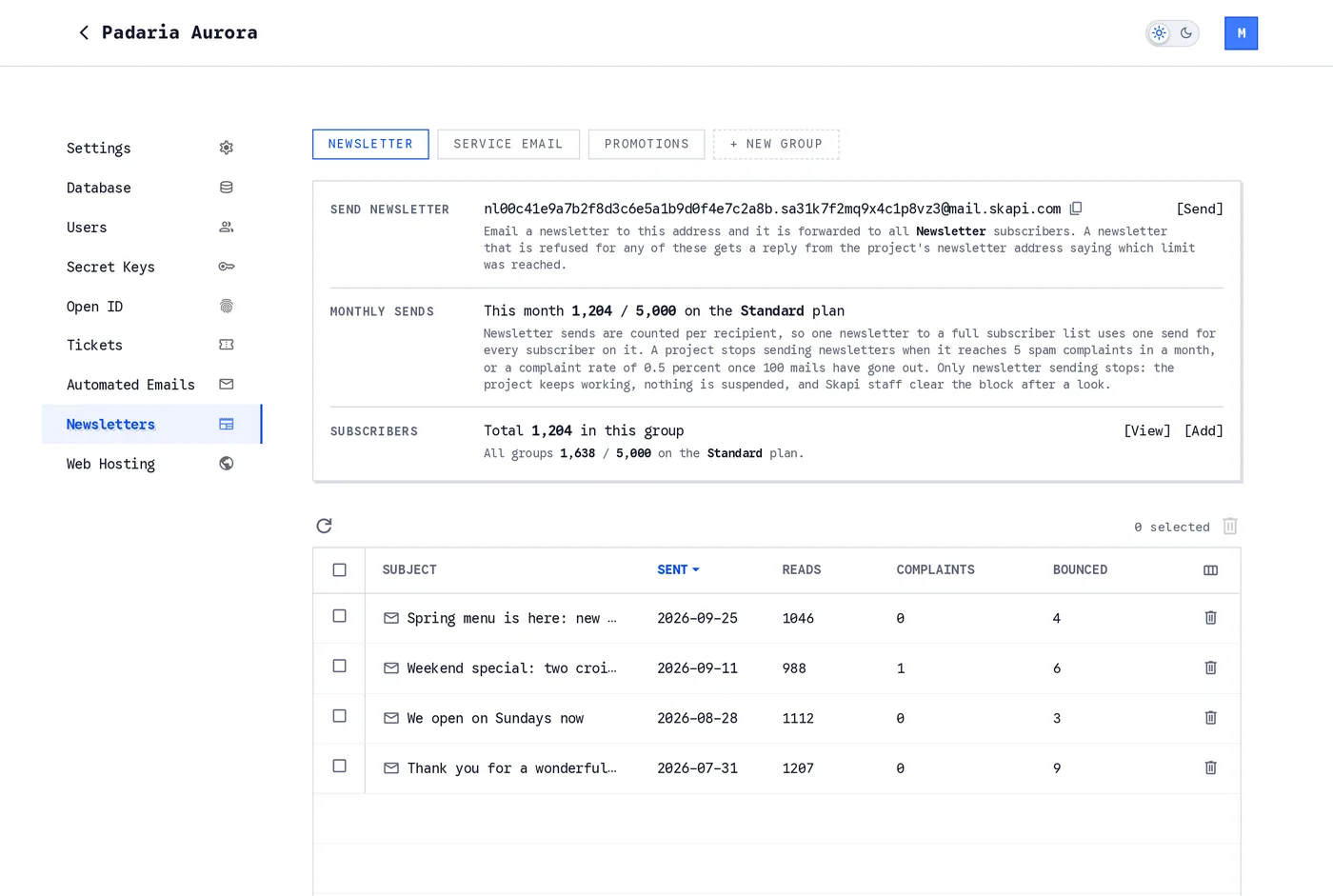
The Newsletters page. Every list has its own sending address, its own subscriber count and its own history of sent mail.
The first row is the whole sending story. Write your newsletter in your own mail app, the one you use every day, and send it to the address shown there. [Send] opens a new message to that address for you. Skapi forwards the email to every subscriber of that list, adds an unsubscribe link at the bottom, and the table below fills in with the subject, the date, and how many people read it, complained, or bounced.
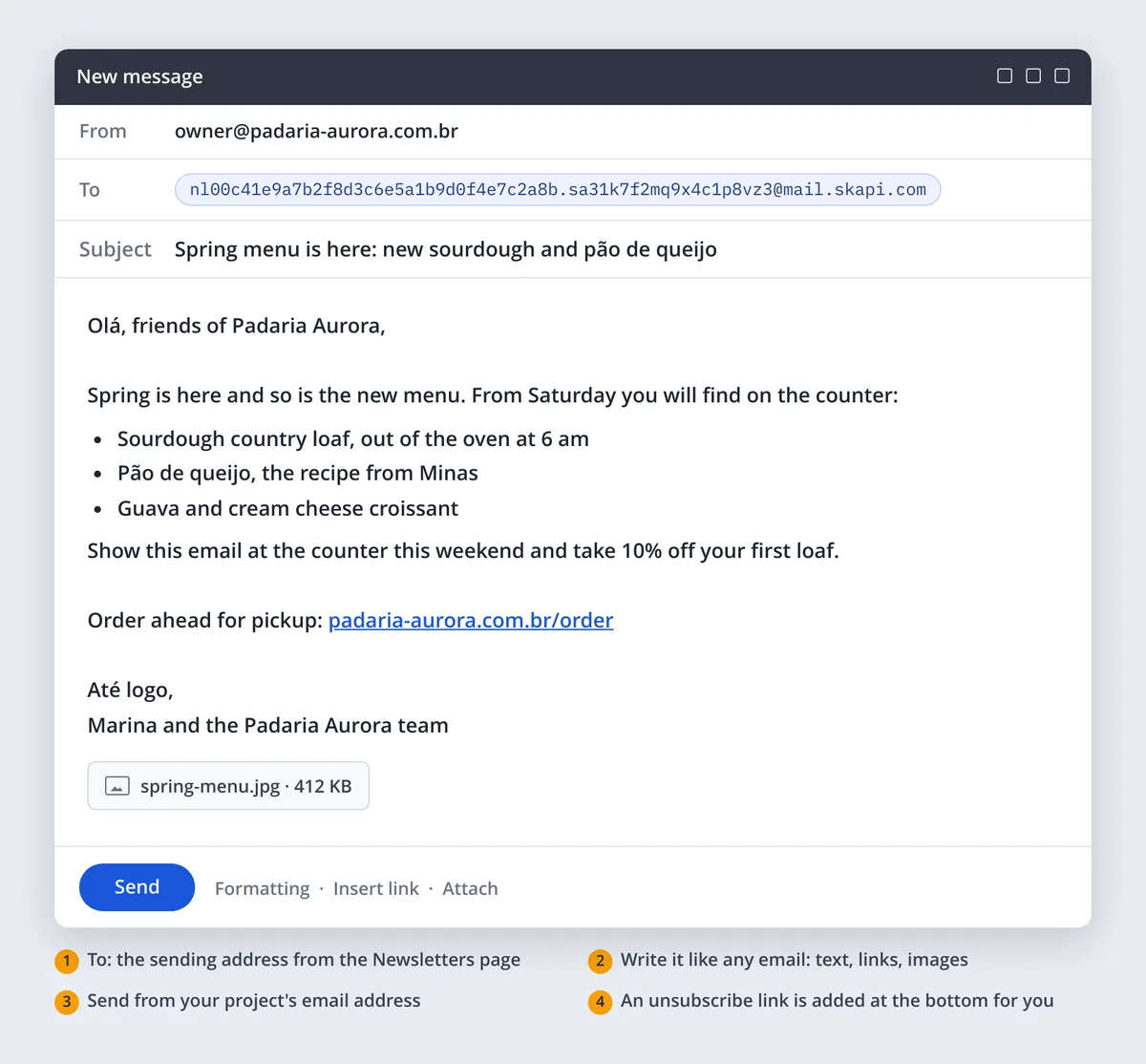
Composing a newsletter in a mail app. The address in To is the one the Newsletters page shows, and the email goes out as written, with an unsubscribe link added at the bottom.
There is no editor to learn, no template gallery, no campaign builder. If you can write an email, you can send a newsletter.
Two guardrails sit behind that address. Mail is only accepted from the email address your project is registered with, so knowing the address is not enough to send as you. And the sending address has to pass the sender trust checks (SPF, DKIM and DMARC), which the large email providers already do. Anything else is refused, and Skapi replies to tell you why.
Before any of this works, register an email alias on your project's Settings page. It becomes the address your newsletters and automated emails are sent from, and the Newsletters page stays closed until you have one.
Adding subscribers by hand
Not every subscriber comes through a form. You may be moving a list from another tool, or you may have customers who wrote their address on a sheet at the counter. On the Subscribers row, click [Add].
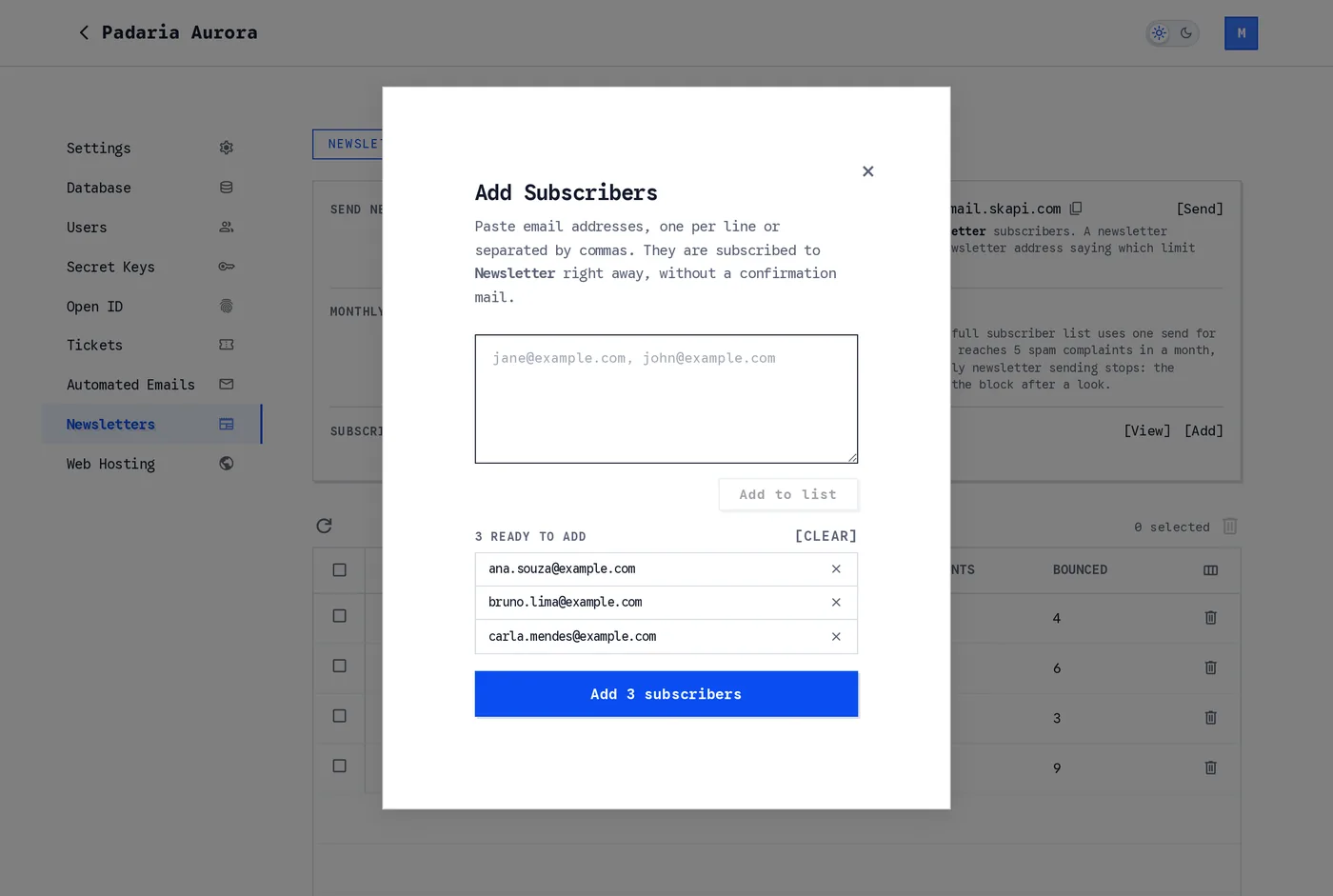
Paste addresses, one per line or separated by commas, check the list, and add them.
Paste the addresses, one per line or separated by commas, and click Add to list. Anything malformed is set aside and shown to you, duplicates are folded together, and the addresses that remain are listed so you can remove one before committing. Then Add 3 subscribers, or however many you pasted.
Addresses added this way are subscribed right away, without a confirmation mail, so use it for people who have already asked to hear from you. Everyone else should come in through the form below, which confirms the address first.
[View] opens the list itself, with a search that matches the start of an address.
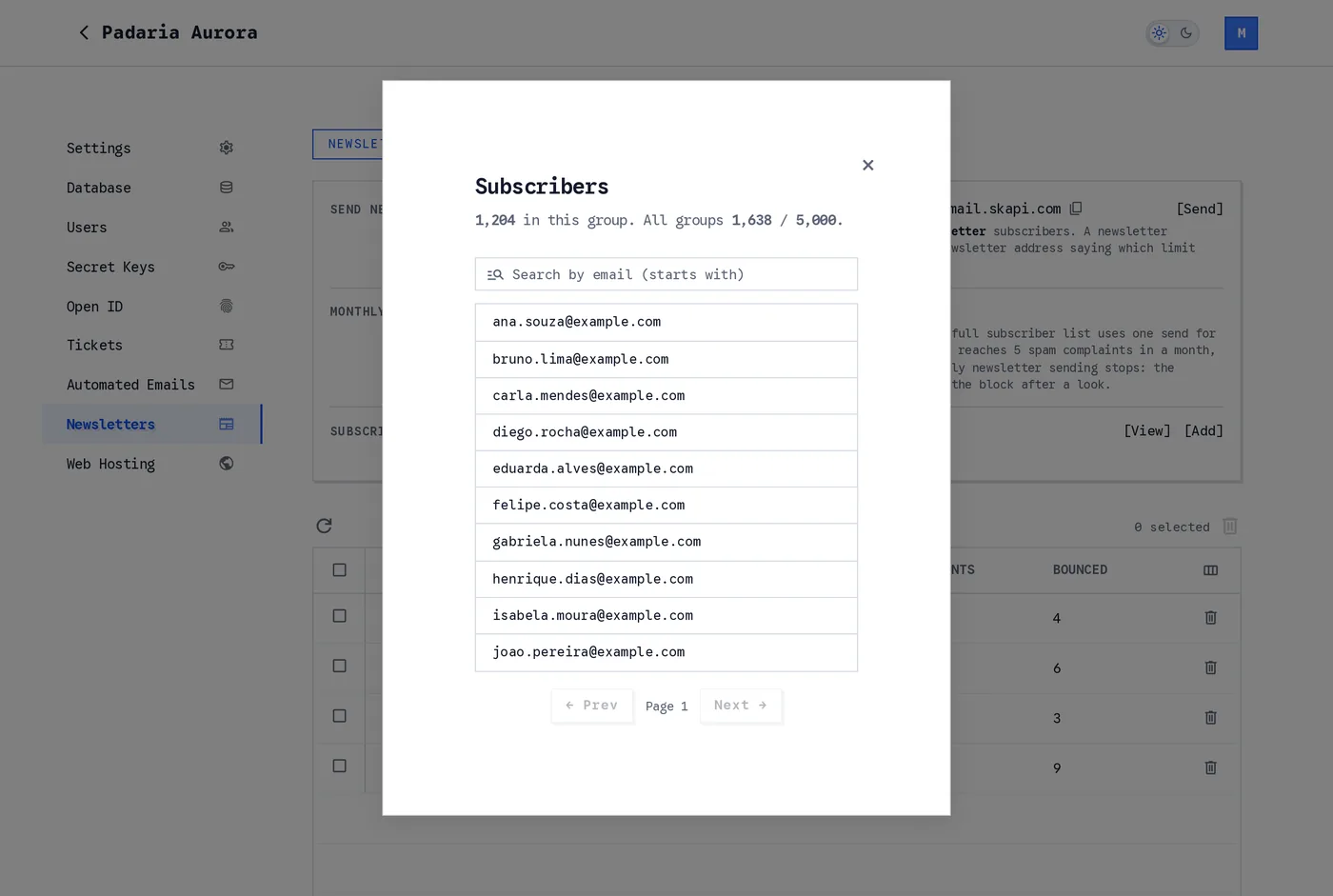
The subscriber list, searchable by the start of an address.
The Service Email tab has no [Add]. Its subscribers are your users, who subscribe and unsubscribe with their own account, so nobody can be added to it by hand.
Groups: several lists on one project
One project is not limited to one newsletter. Click + New group to create a named list.
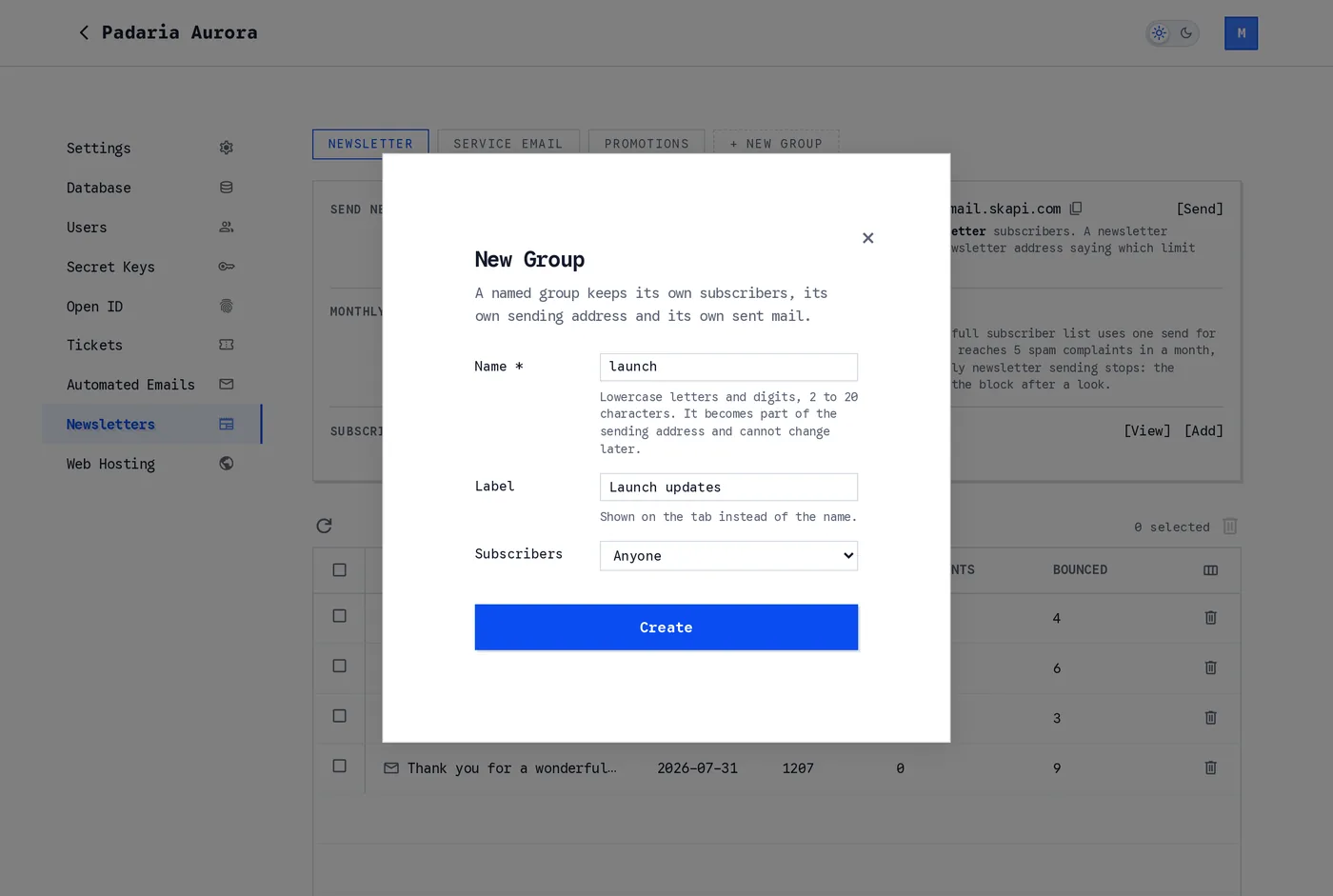
A named group: a short name that becomes part of its sending address, an optional label for the tab, and who may subscribe.
The name is two to twenty lowercase letters and digits. It becomes part of the group's sending address and cannot change later. The label is what the tab shows. Subscribers decides who may join: anyone with an email address, any signed-in user of your app, or only users at or above an access group you choose. That last option is how you run a members-only or paying-customers-only list without writing any code.
Each group keeps its own subscribers, its own sending address and its own sent mail, so a subscriber of one never receives the other. A project can hold up to twenty of them.
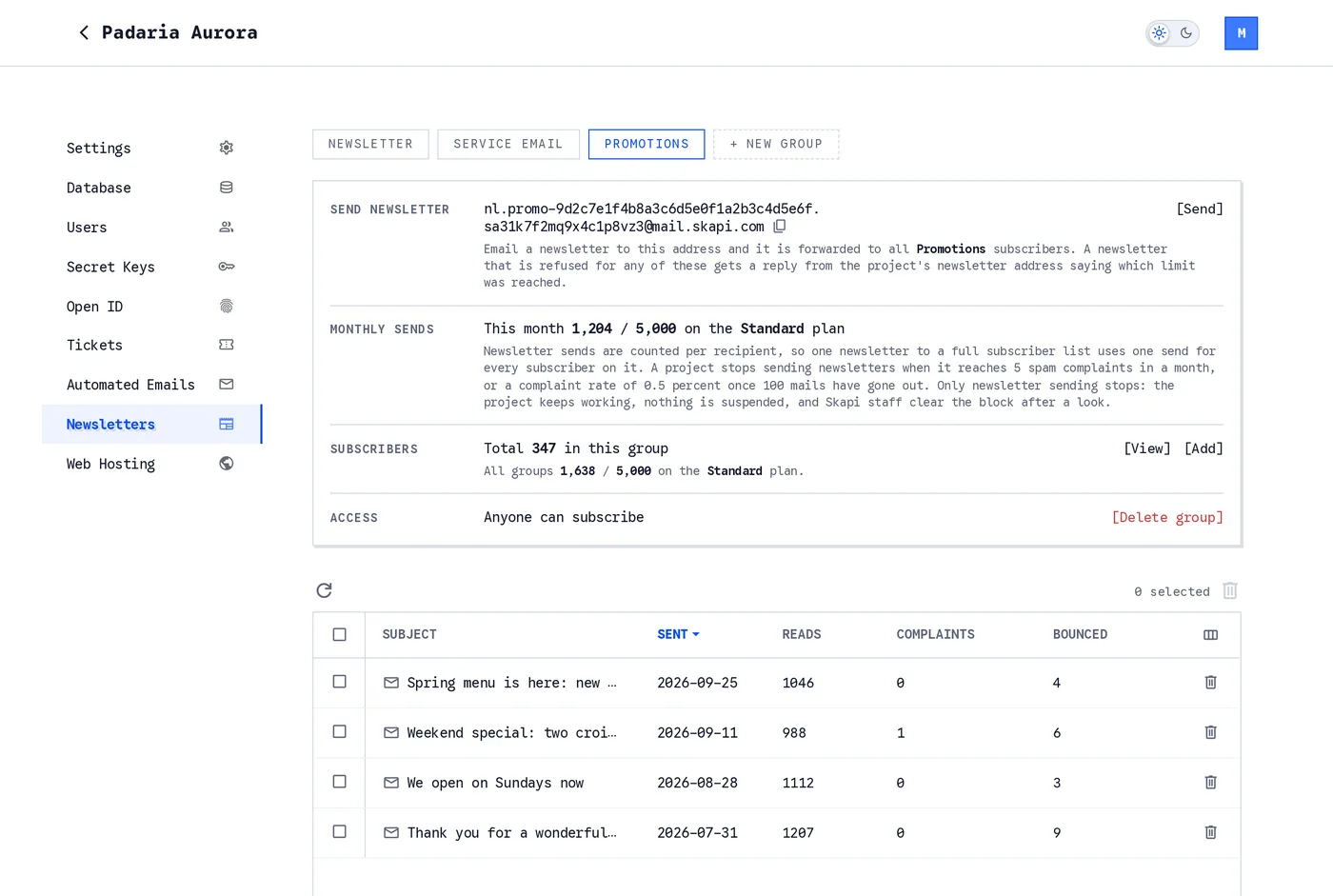
A named group has its own address, its own count and an Access row. Deleting the group deletes its subscribers with it.
The signup form, without writing it
The form is the part most people expect to build. You do not have to. Open your project's Settings page and scroll to Application Examples.
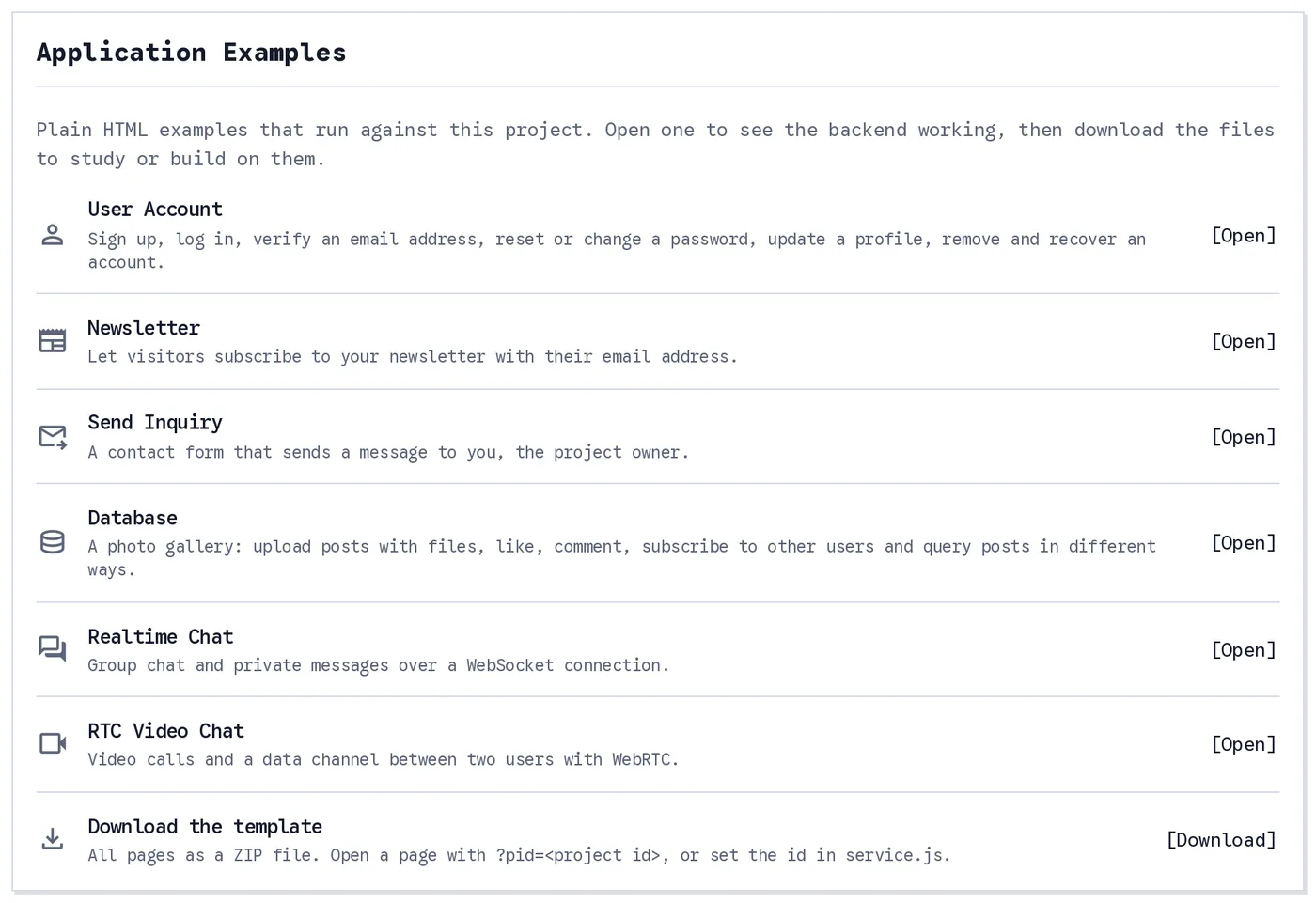
Application Examples on the Settings page. Every row opens a plain HTML page that already runs against your project.
Click [Open] on the Newsletter row. What opens is a working subscription page, already pointed at your project.
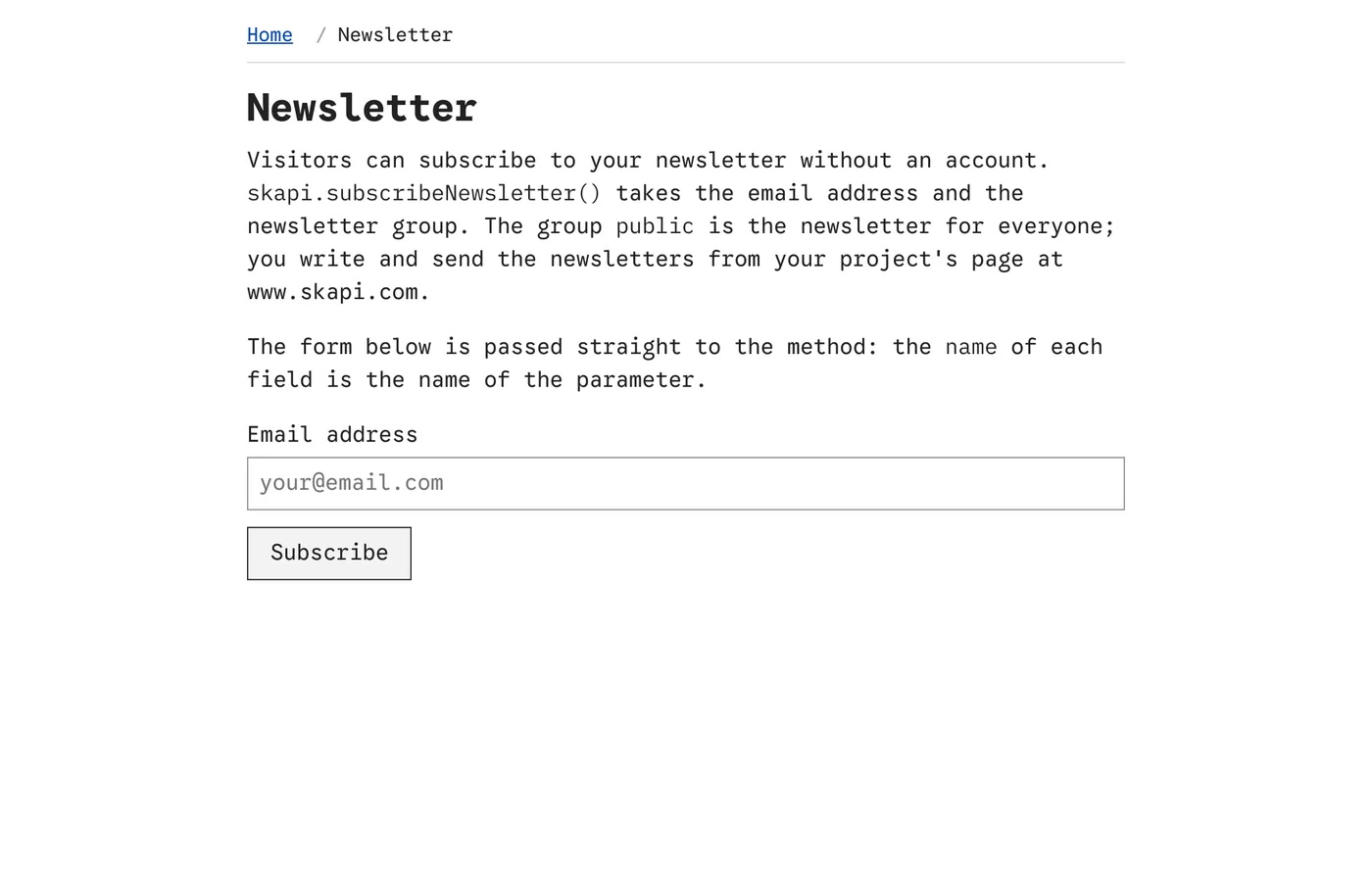
The example page. Its address carries your project id, so it can be linked as it is.
You can use it three ways:
- Link it. The address of that page carries your project id, so a link from your site, your Instagram bio or your email signature is a working signup form. Nothing to host.
- Copy the form. Click [Download] on the same card for every example page as a ZIP, open
newsletter.html, and paste the form into your own page. - Write it. It is a form with two fields, passed straight to the SDK:
<form onsubmit="skapi.subscribeNewsletter(event).then(res => alert(res))">
    <input type="email" name="email" placeholder="your@email.com" />
    <input hidden name="group" value="public" />
    <input hidden name="redirect" value="https://your.domain.com/thanks" />
    <input type="submit" value="Subscribe" />
</form>
Change public to a group's name to feed a named group instead, and redirect is where the visitor lands after confirming.
A visitor who subscribes this way gets a confirmation email and joins the list when they click the link in it, so every address on your public list is one that proved it wanted to be there. A signed-in user with a verified email skips the confirmation.
Rules that keep you out of the spam folder
The plumbing that a mailing tool charges for is switched on for every project:
- Confirmation for every public signup, and an unsubscribe link on every newsletter.
- Complaint shutoff. A project that collects five spam complaints in a month, or a complaint rate of half a percent once a hundred mails have gone out, stops sending newsletters. Nothing else about the project stops, and we clear the block after a look.
- Sender trust. Only mail from your registered address, passing SPF, DKIM and DMARC, is forwarded.
- Counted per recipient. One newsletter to a list of 1,000 uses 1,000 of your monthly sends, so the number on your plan is a number of deliveries, not of campaigns.
What it costs
Newsletters are part of every plan, not a separate product.
| Free | Standard $19/mo | Premium $89/mo | |
|---|---|---|---|
| Subscribers, all groups | 50 | 5,000 | 50,000 |
| Newsletter sends per month | 50 | 5,000 | 50,000 |
| Email storage | 50 MB | 1 GB | 5 GB |
| Past a limit | Stop | Stop | $1 per 1,000 extra sends or subscribers |
The same plan carries your database, file storage, hosting, user accounts, automated emails and everything else a Skapi project does. The newsletter is not the thing you are paying for. It comes with it.
Now Mailchimp, from its pricing page at the time of writing. Its Free plan takes 250 contacts and 500 sends a month. The paid plans start at $13 a month for Essentials and $20 for Standard, both for up to 500 contacts, and the price climbs with every tier of contacts you hold. Premium starts at $350.
| Contacts | Mailchimp Essentials | Mailchimp Standard |
|---|---|---|
| 500 | $13 | $20 |
| 2,500 | $45 | $60 |
| 5,000 | $75 | $100 |
| 10,000 | $110 | $135 |
| 25,000 | $270 | $310 |
| 50,000 | $385 | $450 |
Put the two side by side for a monthly newsletter, one send to the whole list each month:
$19 for 5,000 subscribers, against $75 to $100. $89 for 50,000, against $385 to $450.
The same list at both companies, at the time of writing. Skapi's price is the plan the list fits in, Standard up to 5,000 subscribers and Premium above it, and that plan runs the rest of your backend too. Mailchimp's is its published tier for that many contacts.
Two honest notes. Below a few hundred subscribers, Mailchimp's entry tier is a few dollars cheaper than our Standard plan, and its free tier is larger than ours. And Skapi counts sends per recipient, so a weekly newsletter to 5,000 people is 20,000 sends a month, which puts you on Premium at $89, about what Mailchimp charges for the same list. At 25,000 subscribers sent weekly, Skapi is $139 with the extra sends billed, against $270 and up. The bigger the list, the wider the gap.
One more difference in how the count works. Mailchimp's tiers are based on the contacts in your audience, which by its own rules includes people who have unsubscribed until you archive them. Skapi counts subscribers. When someone unsubscribes, they leave the list and the count.
What Mailchimp has that we do not
Mailchimp is a marketing suite. It has a drag-and-drop editor, a template gallery, automation journeys, A/B tests, landing pages and deep reporting. If your business runs on those, keep it.
Skapi gives you a list, a form, an address, and a table that tells you who read, who complained and who bounced. You write in your own mail app, and segmentation is a group. For a great many businesses, that is the entire newsletter they ever wanted, and it is the part that Mailchimp charges for by the contact.
Where to start
- Register an email alias on your project's Settings page.
- Open Newsletters, add the subscribers you already have with [Add], and create a group if you need more than one list.
- Link the example signup page, or paste its form into your site.
- Write the newsletter in your mail app and send it to the address on the page.
The first one takes about ten minutes. Every one after that takes as long as writing the email.