We built a video call. Not a product, a demonstration: an open source video call for two people that runs in the browser, with screen sharing, a shared drawing board, a chat that takes markdown, and file transfer. It is called Video Call, it is made of a lightweight HTML page and three small files with no build step, and the code is at github.com/broadwayinc/skapi-video-call. It is live at videocall.skapi.com, and anybody can use it there for free: open the page, send the link, talk. Anybody can also put it on their own website, customize it, or host it on their own Skapi project by changing one line: the project ID.
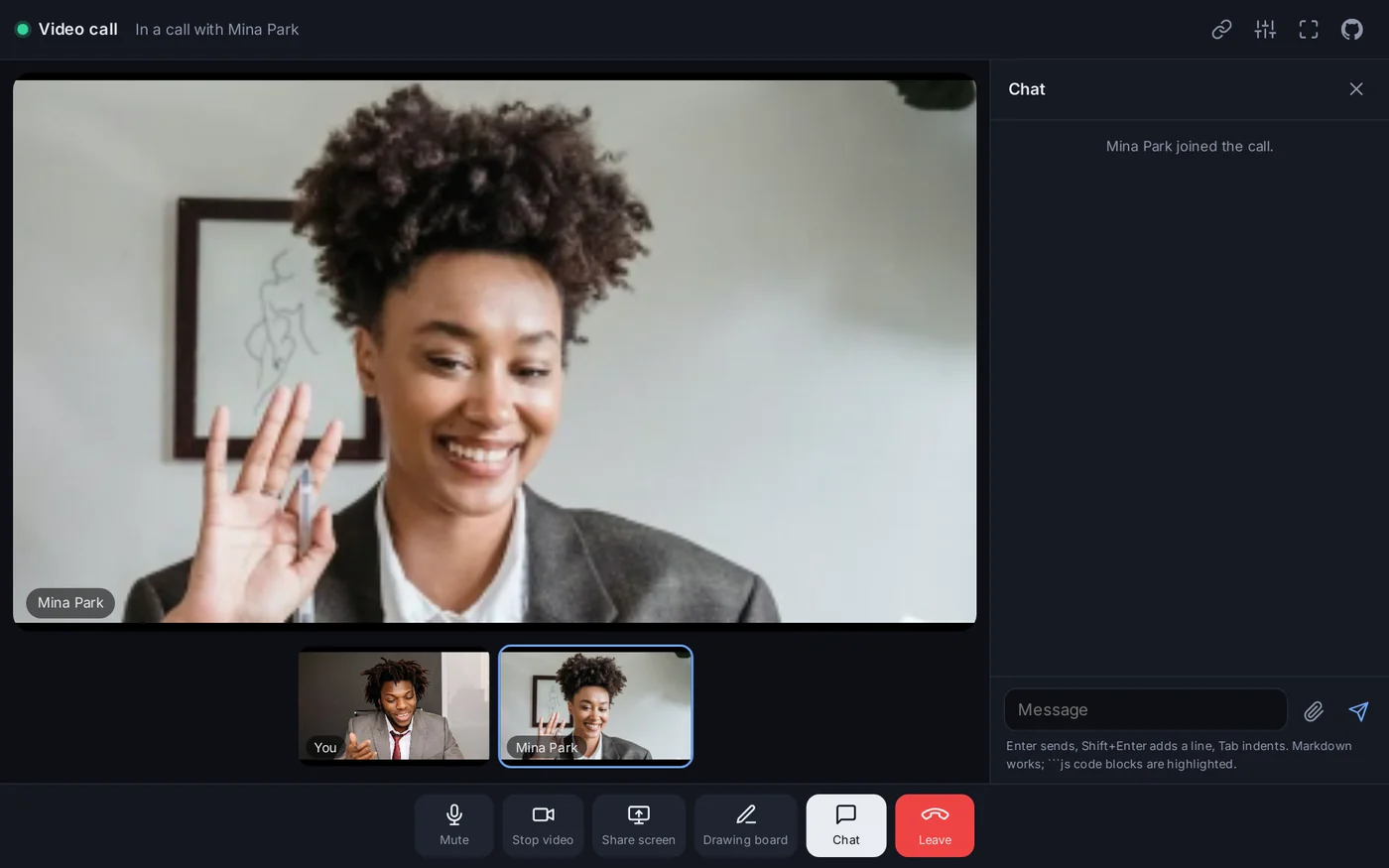
A call in Video Call. The large picture is the stage, the small ones are the two cameras, and the chat sits beside it.
We wanted to show two things with it. The first is how far Skapi can take the RTC connection that is already built into every browser. The video, the voice, a shared screen, the drawing, the chat and the files all travel straight from one browser to the other over Skapi's RTC connection, with no server in between, and the whole application fits in one page. The second is a new feature of Skapi, anonymousLogin(), which is what lets anyone open the page and talk without creating an account. This article walks through what the app does, how it works, and how to make it yours.
What it does
Open the page and you are in the waiting room: your camera preview, your name, and a link. Send the link to the person you want to talk to. They open it, check their own preview, and press Enter. The call starts by itself. Nobody signs up, nobody installs anything, and nobody has to accept a call: having the link is the invitation.
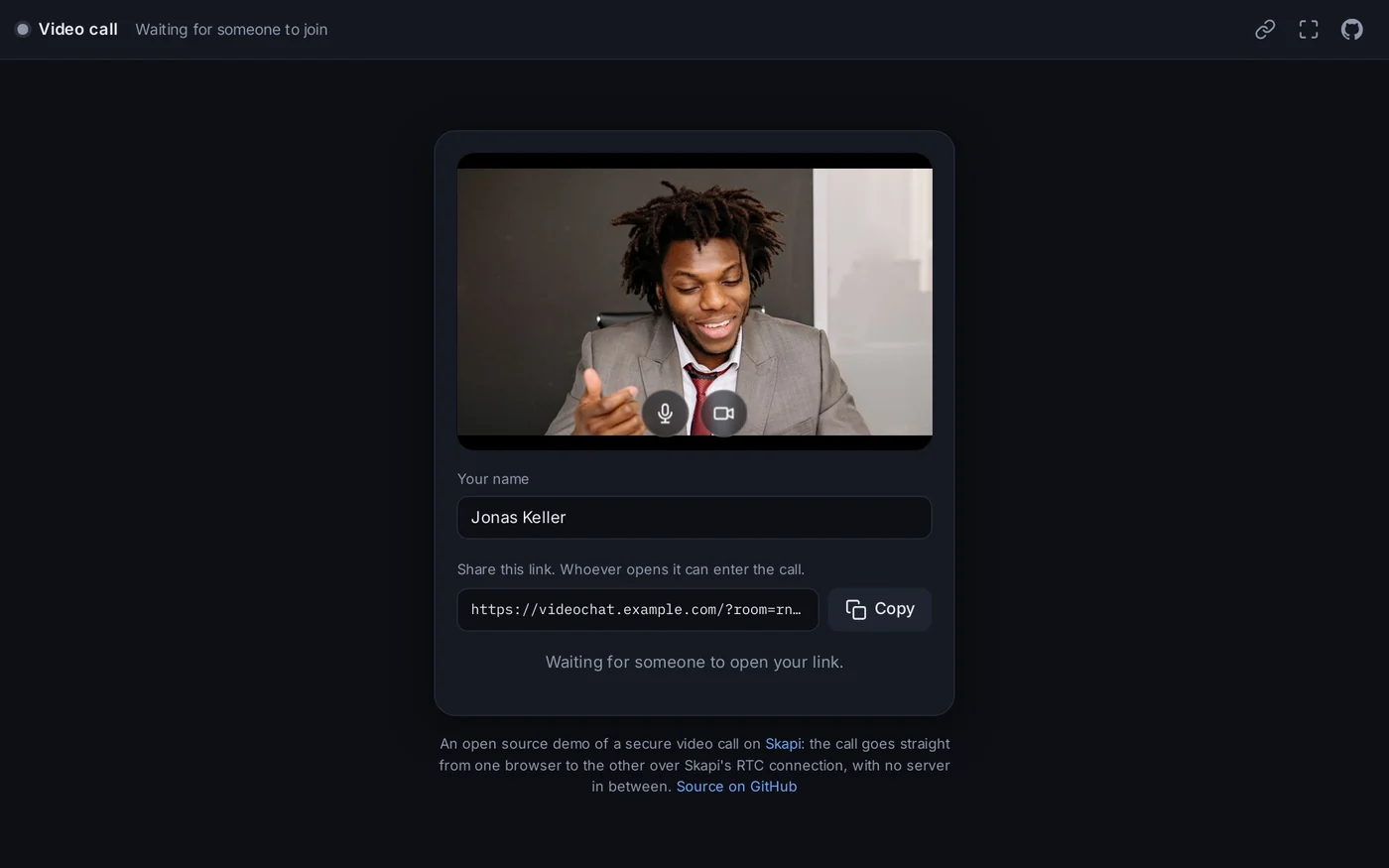
The waiting room. The link is the whole invitation.
During the call, the large picture is the stage and the small pictures below it are everything in the call: your camera, the other person's camera, a shared screen, the drawing board. Click a small picture to put it on the stage. The buttons at the bottom mute your microphone, stop your camera, share your screen, open the drawing board, open the chat, and leave.
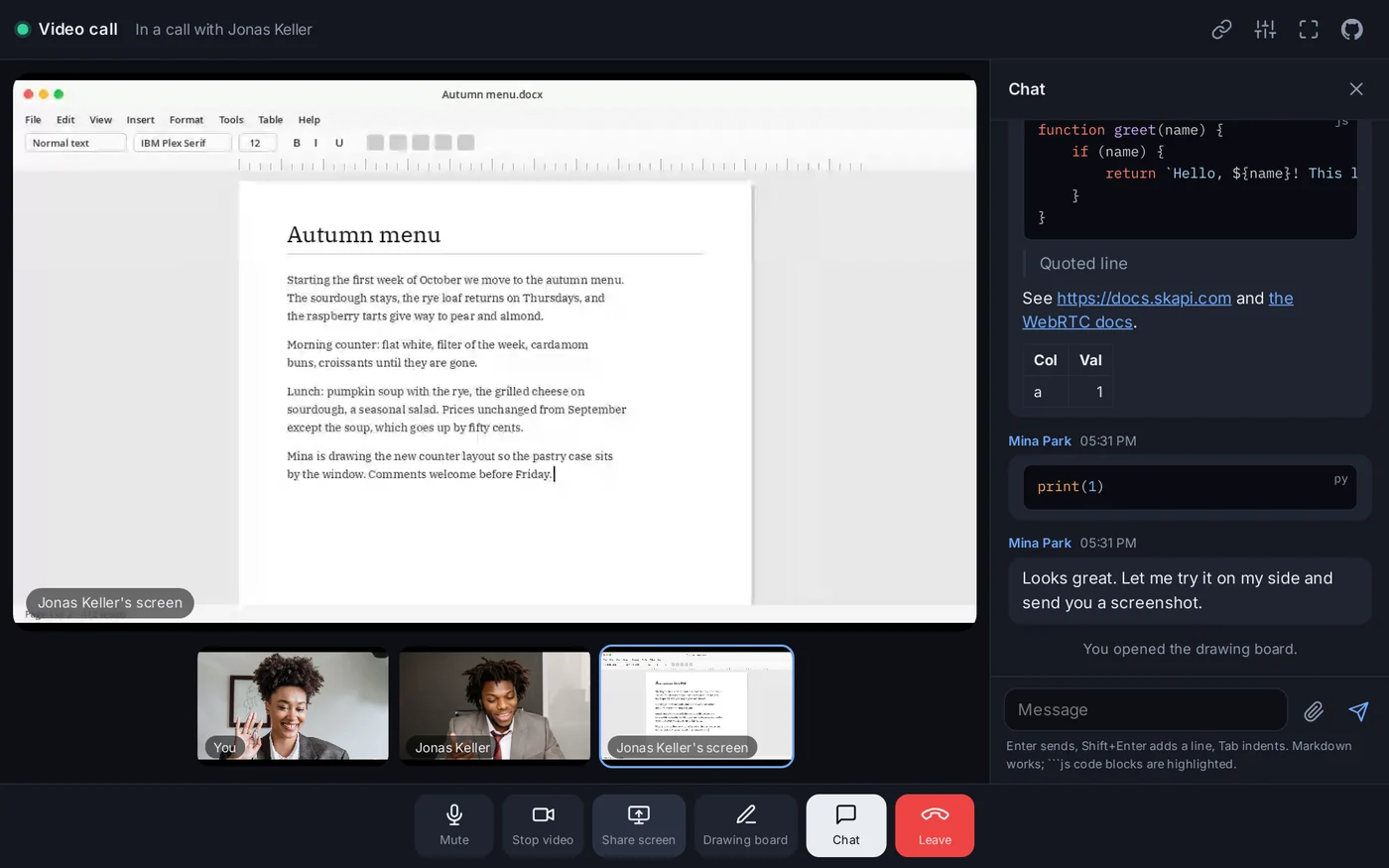
Share a window, a tab or your whole screen. It goes to the other person's stage right away.
The drawing board is a white board that both of you draw on at the same time, with six pens, three sizes, an eraser and a clear button. Everything you draw shows up on the other side as you draw it.
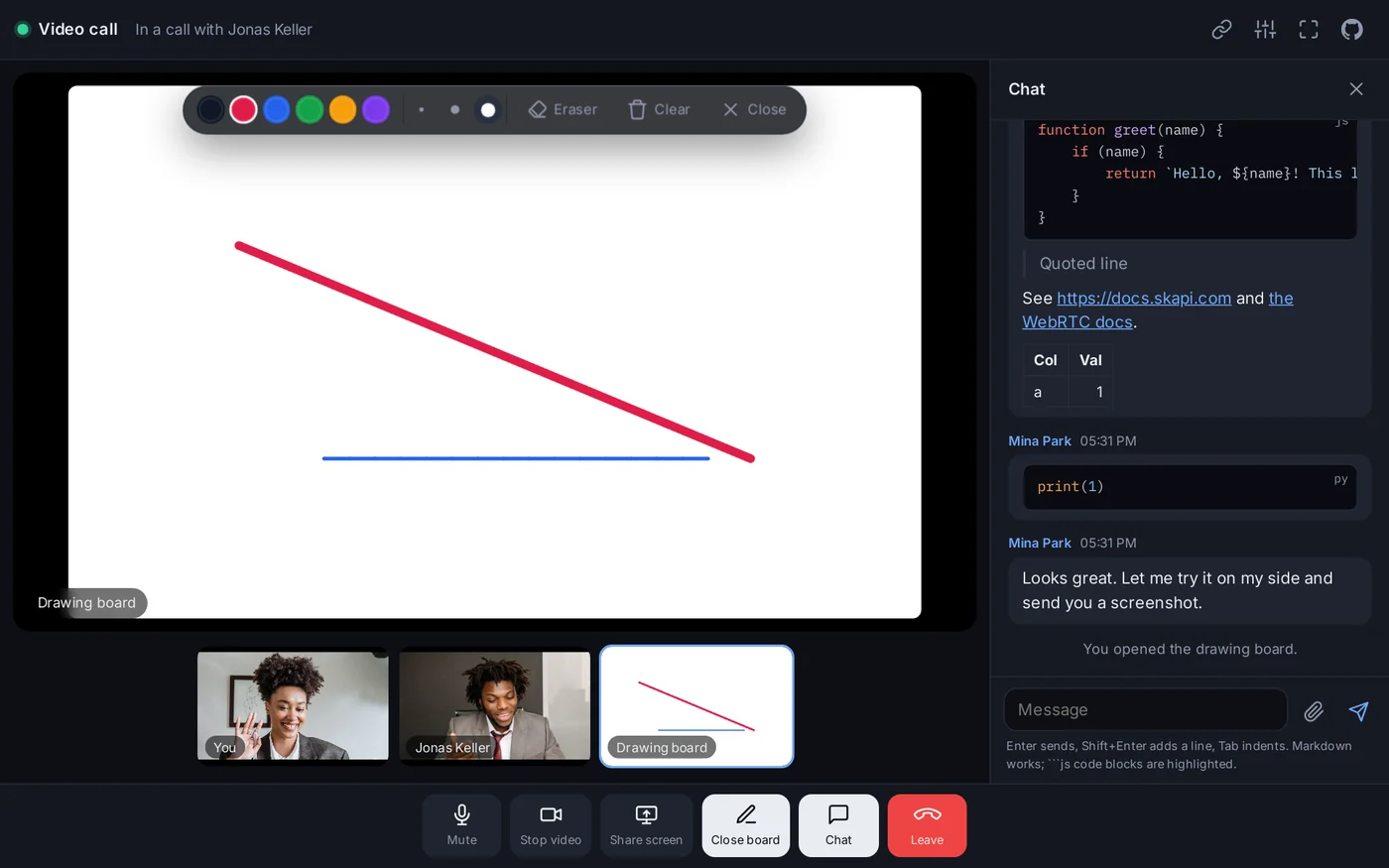
The shared drawing board. The board, the drawing and the tools live in the page; the strokes travel over the call.
The chat takes markdown: bold, headings, lists, links, tables and code blocks with syntax colouring. Enter sends, Shift+Enter adds a line, Tab indents, like a code editor. Messages go straight to the other browser and are not kept anywhere; when the call ends, the chat is gone. A file sent from the paperclip goes over the call too, with a progress bar on both sides, and pictures show right in the chat.
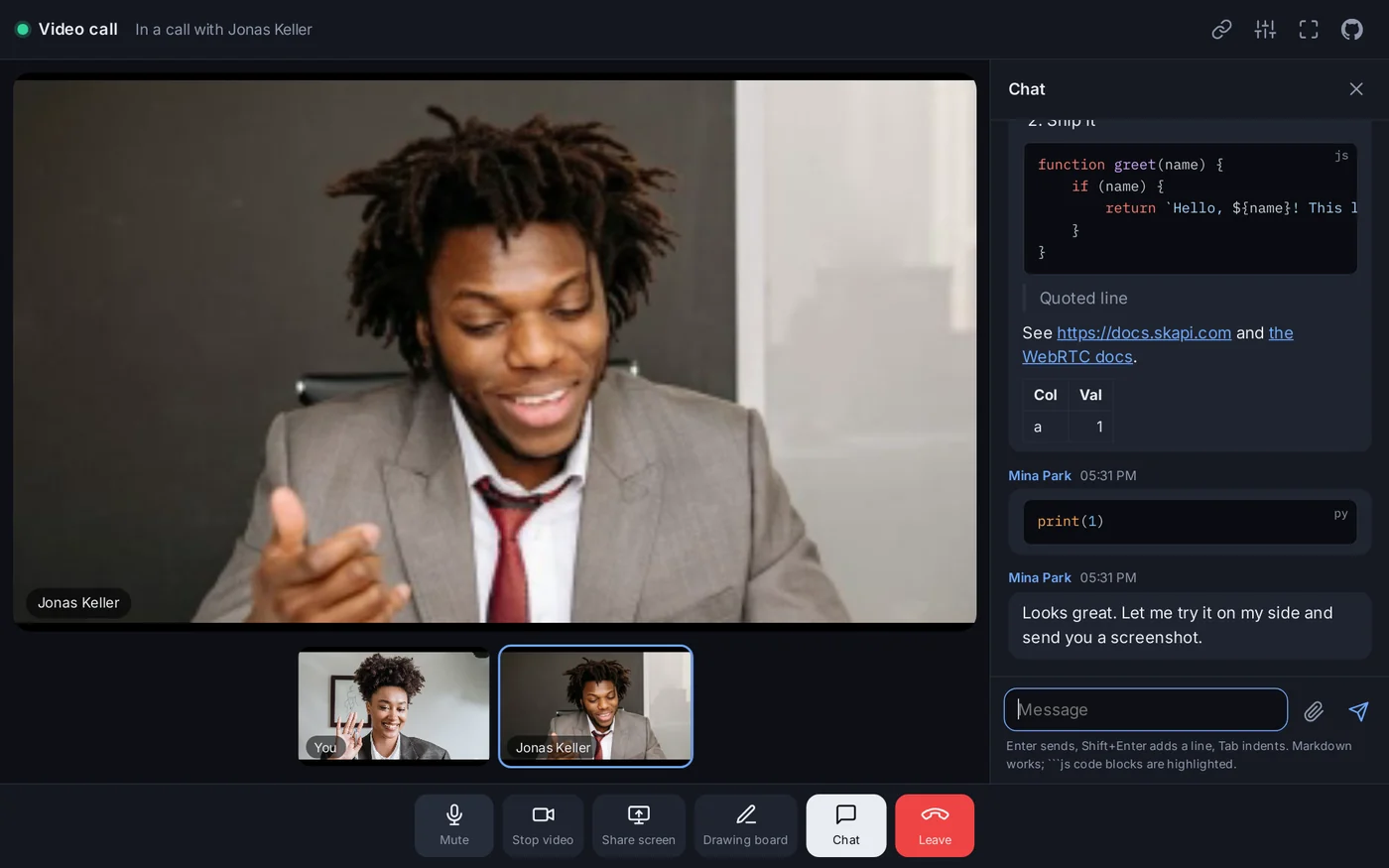
The chat renders markdown, and a code block named with its language is coloured.
Everything works the same on a phone, laid out for a small screen.
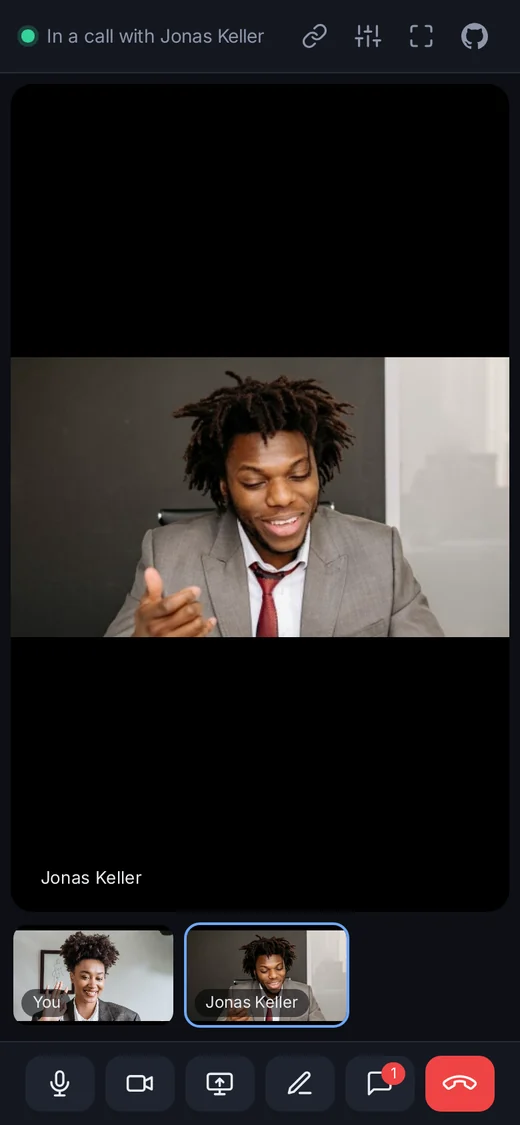
On a phone the chat covers the call while it is open, and the buttons show icons only.
And a word on privacy, because it is the point of the design. When you open the page you get a temporary account that is deleted about half an hour after you leave. Your video, voice, messages, drawings and files travel directly between the two browsers and are not stored anywhere. The service behind the app only helps the two browsers find each other.
How it works
Three things happen when a call comes about: each browser signs in, the two meet in a room, and then they connect to each other directly. Skapi is in the first two. It is not in the third.
Skapi does the sign-in, keeps the room, and relays the handshake. The call itself is a WebRTC connection between the two browsers.
Here is the same thing as a sequence, the way the code does it.
Every step until the handshake goes through Skapi's realtime connection. The connection the handshake sets up does not.
- The host opens the page: a temporary account, no sign-up.
- A room id goes into the address; the host joins its realtime group.
- The host sends the link, by chat, e-mail or any other way.
- The guest opens the link and gets a temporary account too.
- The guest presses Enter and joins the same group.
- Realtime tells the host that someone is here.
- The host calls; the guest's browser answers by itself.
- The browsers are connected. From here on the video, the voice, a shared screen and the data channels for the chat, the drawing board and the files travel between the two browsers only.
Now the code behind the steps. Signing in is a few lines at the top of app.js. The project ID is the one constant, and autoLogin brings back the temporary account of an earlier visit, so a reload within half an hour keeps the same account:
const PROJECT_ID = "5VqfG6NuS163eFEcYy-7Zd6TgdLUaFxseKMT1qveY";

const skapi = new Skapi(PROJECT_ID, { autoLogin: true });

async function signIn() {
    let user = await skapi.getProfile();
    if (user && !user.anonymous) {
        await skapi.logout(); // a regular user of this origin is logged out here first
        user = null;
    }
    if (!user) user = await skapi.anonymousLogin();
    return user;
}
The room is a realtime group. Without ?room= in the address the page makes a ten-character room id and writes it into the address; that address is the link. Everyone who opens it joins the group of the same name with joinRealtime(), and the group does two jobs: it says who is there, through the USER_JOINED and USER_LEFT messages, and it carries the WebRTC signaling, the offer, the answer and the candidates the two browsers exchange to find a path to each other. A guest looks into the room first with getRealtimeUsers(), so the waiting room can say "Someone is waiting for you" before they press Enter.
When two people are in the room, the one with the smaller user id calls. The call is one method, connectRTC(), with the camera and the microphone, two named data channels, and a little metadata the other side can read before it answers:
const connector = await skapi.connectRTC({
    cid,                     // the other person's realtime connection
    ...options,              // the camera and the microphone
    channels: CHANNELS,      // "chat" and "drawing"
    meta: { kind: "video call", room, name: me.name },
}, onRTC);

const connection = await connector.connection; // resolves when the other side picks up
The other browser gets an rtc:incoming message and answers it with connectRTC() of its own. In a normal app that is where you would show an incoming call screen; here the link is the invitation, so the guest's browser accepts at once and nobody clicks anything. From then on onRTC delivers the media tracks and the data channel messages. The chat sends small JSON messages over the chat channel, which also carries your name and your mute state. The drawing board sends every stroke over the drawing channel as fractions of a 1600 by 1000 canvas, so both boards show the same picture whatever the screen size. A file goes through sendFile() on the same connection: the SDK chunks it over a channel of its own, reports progress on both sides, and hands the other browser a file.
That is the whole mechanism. There is no media server, no signaling server of your own, no TURN configuration to write, and no backend code. The browser already knows how to do a video call; what it needs is a way to find the other browser and a safe place to exchange the handshake, and that is what a Skapi project gives it.
Meet anonymousLogin()
Everything in Skapi that is worth protecting, private records, files, realtime, RTC, needs a logged-in user. That is right for an app with accounts, and wrong for a page you want to open and use in three seconds. anonymousLogin() is the answer. One call signs the visitor in with a temporary anonymous account: no e-mail, no password, no form.
let user = await skapi.anonymousLogin();
console.log(user.anonymous); // true
From that moment the visitor is a logged-in user. skapi.user is set, the login listeners run, and every method that needs a login works: records, files, realtime, RTC, subscriptions, tickets. The account carries anonymous: true and access group 1, and it counts as a user of your project while it exists.
An anonymous account lives while a page holds its session, and goes away on its own after the visitor leaves.
The SDK keeps the account alive with a keep-alive every 10 minutes while a page holds its session, and once more when a page load restores the session from storage. The account is deleted 30 minutes after the last keep-alive, so reloading the page or coming back within half an hour keeps the account and its data, a tab in the background keeps it too, and a laptop that was asleep for an hour comes back to a deleted one. In that case the next keep-alive learns it, signs the page out, and the page can call anonymousLogin() again for a fresh account. logout() deletes the account at once. When the account goes, everything it owns goes with it: its records, files, subscriptions and realtime state.
A temporary account stays temporary. It cannot edit its profile, change or reset a password, verify an e-mail or a phone number, subscribe to newsletters, or disable itself. Each of these is refused by the server as well as by the SDK, so there is no way around it.
Anonymous login is off until you turn on Anonymous Login in your project's settings, and it works whether or not Allow Signup is on, so a project can close signups and still let visitors in. The full description is in the documentation: Anonymous Login.
In Video Call this is the first thing the page does, before anything else, and it is what makes the rest possible. Two anonymous accounts can join a realtime group, exchange a WebRTC handshake, and open a connection to each other, and when the call is over and the tabs are closed, the two accounts are swept away half an hour later and the project is as clean as it was before. There is nothing to moderate, nothing to delete, and no user list that grows with every visitor.
Make it yours
The app is four files: index.html for the page, style.css for the look, app.js for everything it does, and markdown.js for the chat. There is no build step, so it can be hosted anywhere that serves static files, including the web hosting that comes with your Skapi project. The skapi-js library is loaded from a CDN. Browsers allow the camera, the microphone and calls only on localhost or over https, so serve it over https when you put it on a server.
To run it on your computer you need Node.js. In the app's folder:
npm install
npm run dev
Then open http://localhost:4000/. Any other static file server works just as well.
To run it on a project of your own:
- Create a free account at www.skapi.com and create a project.
- Open the project's Settings and turn Anonymous Login on.
- Copy the project's Project ID from the project page.
- Open
app.jsand paste it into the one line near the top:const PROJECT_ID = "your-project-id";
That is the only change needed. Upload the folder to your web host and share the address. The colours, sizes and fonts are variables at the top of style.css, the icons are drawn inline in index.html, and each part of app.js starts with a comment that says what it does, so changing the look or the behaviour is a matter of reading one section. Take the drawing board out, keep only the chat, add a third person, change the rules for who may enter: the file is yours.
Where to go next
- The app: videocall.skapi.com. Free for anyone, no account, nothing to install.
- The code: github.com/broadwayinc/skapi-video-call. The README is the user manual, with every screen explained.
- The feature: Anonymous Login in the Skapi documentation.
- The methods the app is built on: WebRTC and Realtime.
Open videocall.skapi.com, send the link, talk. Then open the files and see how little it took.