The question comes in several shapes. "I uploaded the new version and the site still shows the old one." "I changed the setting to one year and now I cannot get my CSS to update." "What is the difference between the CDN cache row and the Browser caching row, and which one do I click?" They are all the same confusion, and it is an understandable one: between the file you upload and the screen your visitor looks at there are two caches, not one, and they belong to two different parties. This article takes them apart, shows how Skapi web hosting uses each, and explains why the way it is set up is the one you would end up choosing yourself after a bad week.
Two caches, two owners
A cache is a copy kept close to where it is needed so the original is not fetched again. Web hosting has two of them in a row.
Two copies between your upload and your visitor. Skapi owns the first; the visitor's browser owns the second.
The CDN cache is Skapi's. The CDN is a network of servers around the world, and when a visitor in Paris asks for your logo, the copy comes from a server near Paris, not from the storage where you uploaded it. That is what makes a hosted site fast everywhere. The copy is kept for up to a day, and because the copy is on our side, we can throw it away whenever your files change. We do, and the next section is about that.
The browser cache is the visitor's. Once their browser has downloaded a file, it may keep its own copy on the device and reuse it without asking anyone, for as long as the file's headers allow. That copy is on a computer we have never seen. Nothing we do, and nothing you do on the Web Hosting page, reaches it. Only two things ever replace it: the allowed time running out, or the page asking for a different address.
Hold on to that difference, because it answers most questions by itself. The CDN cache is about how fast the site is for everyone; it is ours to keep fresh, and we do. The browser cache is about how fast a return visit is for one person; it is yours to allow, and once allowed it is out of everyone's hands.
The CDN cache: fast, and refreshed for you
Here is what happens when you change something on your site, whether by uploading, overwriting or deleting on the Web Hosting page or through the Skapi MCP server.
A change refreshes the CDN by itself. The CDN cache row on the Web Hosting page shows where it stands.
About a minute after the change finishes, the CDN drops its copies of the whole site. The next visit to any address fetches the new file, and from then on the copies are the new ones. Changes that land during that minute ride the same refresh, so a batch of twenty files is one refresh, not twenty. While it runs, the CDN cache row on the Web Hosting page reads Updating; when it is done it reads Live. There is nothing to click, nothing to configure and nothing to remember.
Why the whole site and not just the changed file? Because a page names its files. When index.html changes to point at a new stylesheet and the stylesheet changes too, you want both to arrive together, never a new page with the old stylesheet or the other way round. One refresh per burst of changes keeps the site consistent, and it is also the simplest thing that can possibly work.
Two safety nets sit behind the automatic refresh. A check runs every 30 minutes and refreshes any site whose files changed without a refresh having happened, so a missed event cannot leave a site stale. And [Refresh now], on the same row, republishes every file of the site to the CDN at once, for the moment you would rather not wait for anything. One more detail that saves people a support ticket: an address that has no file is never cached, by the CDN or by a browser. Upload a file at a new address and it shows at once, and so does a newly set 404 page.
A CDN refresh changes what the CDN serves. It does not change what a visitor's browser already keeps. That is the other cache, and the other row.
The browser cache: yours to set, per upload
The Browser caching row on the Web Hosting page decides how long a visitor's browser may keep the files you upload before asking for them again.
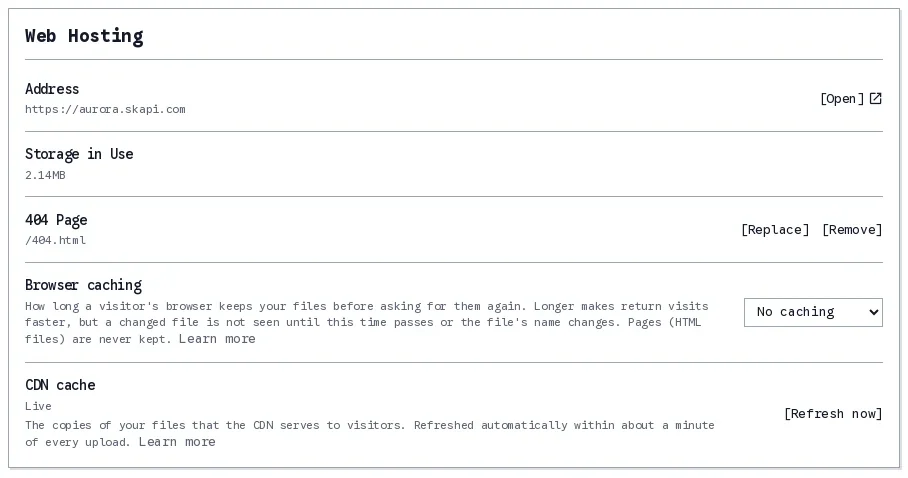
The two rows. Browser caching is a setting you choose; the CDN cache is a state you watch.
The choices are No caching, 5 minutes, 1 hour, 1 day, 7 days, 30 days and 1 year, plus Ask on upload, which asks you once per upload and offers to make your answer the default.
No caching is the default, and it is less expensive than it sounds. The browser keeps the file but asks the CDN before every use whether it changed. When it has not, the answer is a tiny "unchanged" and the browser uses its copy; when it has, the new file comes down. The CDN answers from a server near the visitor, so the question is fast, and the site is always current. For a site you are still building, or for any file you edit by hand under the same name, this is the right setting and you never have to think about it.
A longer setting makes return visits faster, because the browser does not even ask. The right files for it are the ones that never change under their name: images and fonts, a library pinned by version, and the output of a build tool that puts a hash in the file name (app.3f9c1e.js), which is a new name every time the content changes. For those, 1 year is correct and costs nothing. 5 minutes, 1 hour and 1 day are for files that change now and then, where a short delay before visitors see the change is acceptable. A practical way to run a site: keep No caching while it is taking shape, and once it has settled, upload the files that carry a hash or a version in their name with 1 year, and leave everything else alone.
The choice is written onto each file when it is uploaded, and the file list shows it in a column. Files you uploaded before you changed the setting keep what they had; upload a file again to give it the new value.
The warning that comes with it
Anything above 5 minutes shows a warning, and 7 days or more opens an alert you have to accept. It is there for a reason, and the reason is the sentence from the beginning of this article: the browser cache is the visitor's.
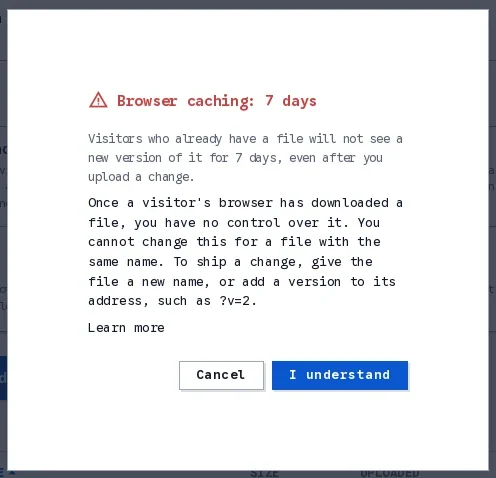
The alert from 7 days up. Read it once, believe it forever.
A long browser cache is a one-way door. Once a visitor's browser has downloaded a file with a one-year allowance, that browser will not ask about it again for a year. Uploading a new version does nothing for that visitor. Refreshing the CDN does nothing for that visitor. Deleting the file does nothing for that visitor. You cannot change this for a file with the same name, because the browser will not ask, and a browser that does not ask cannot be told.
The only way to ship a change to such a file is a new address. Either rename the file, which is what build tools do with the hash, or add a version to the address you use in your pages:
<script src="/app.js?v=2"></script>?v= is the one query string the CDN and the browser both treat as a new address. Change the number whenever you change the file, and every visitor gets the new one on their next visit, however long the old one was allowed to live. Any other query string is ignored, on purpose, so that tracking parameters and the like do not fill the caches with duplicates.
So the rule for a long cache is short: use it only for files whose name or version changes with their content. If you cannot promise that, choose No caching and let the browser ask.
Pages are never cached, and that is what makes the rest work
There is one kind of file the setting does not apply to. Every HTML file is served as No caching whatever you choose, and so is the 404 page.
Pages always come fresh; the other files keep the choice made at their upload.
This is not a limitation. It is the keystone. A page is what names your other files: it says which stylesheet, which script, which images. Because a page is never kept by a browser, a reload always shows the newest page, and the newest page always points at the addresses you put in it. Change app.js to app.js?v=3 in the page, and every visitor's next reload fetches the new script, even if their browser was holding the old one for a year. The long cache on the files and the no-cache on the pages are two halves of one design. Hashed file names, versioned addresses, the "cache forever" habit of every modern build tool: all of it depends on the page being current, and on Skapi it always is.
Why we think this is the right way to do it
If you have run a site behind a CDN yourself, you know the parts: a cache policy with three different time-to-live numbers, cache-control headers to get right per file type, an invalidation to request after every deploy, a script that does it, a wait of several minutes, and a second cache in the browser that no invalidation reaches. Most teams get one of these wrong at some point. Either the CDN keeps a stale site for a day and nobody knows why, or the caches are turned off in frustration and the site is slow for everyone, or a one-year header goes out on a file that then needs an urgent fix.
Skapi's web hosting takes the four decisions that come out of that experience and makes them the only way it works. The CDN keeps your files for a day, so the site is fast everywhere. Your own upload clears it, about a minute later, so the site is fresh without a button. Browsers keep nothing unless you say so, so the default is safe. And when you do say so, the page warns you, the pages themselves stay out of it, and ?v= gives you a clean way out. The two rows on the Web Hosting page are the entire surface: one setting to choose, one state to watch. There is no console to open, no header to write and no script to run after a deploy.
That is the shape of everything we build. The complexity of backend infrastructure is real, and it is ours to carry, not yours. You upload the files and build the site; the caching, the refreshing and the edge cases are taken care of, the same way the database needs no schema and the API needs no server. Your job is the thing you are making.
If you still see the old version
A short checklist, in the order that usually finds it.
- Look at the CDN cache row. If it reads Updating, the refresh is running; give it a minute. If it reads Live and the change is older than a minute or two, press [Refresh now] and tell us, because that should not happen.
- Check your own browser. The file you are looking at may be one your browser downloaded earlier under a longer setting. A reload fetches the page again, and the page fetches whatever it names; if the file's name has not changed and its allowance has not run out, your browser keeps its copy, by design. Change the address (
?v=2) or wait it out. - Check the file's own value in the Browser caching column of the file list. A file uploaded before you changed the setting still carries the old one. Upload it again.
- Remember that pages are never kept. If a page itself looks old, it is the CDN, and step 1 applies.
The documentation has the details: The CDN cache and Browser caching on the Web Hosting page.